Join legendary engineer Jerry Harvey—founder of JH Audio—as he shares his 30+ year journey revolutionizing in-ear monitoring for the world’s top artists, from the origins of JH Audio IEMs to the latest innovations from JH Audio that will shape the future of live sound.
Part of PLASA Show 2025, 7–9 Sept, Olympia London. Audio & AV Theatre
07 September | 4:30 PM – 5:15 PM
Add to Calendar—this is one session every audio pro should hear.
Rising production sound mixer on evolving in the industry and being a sonic problem solver
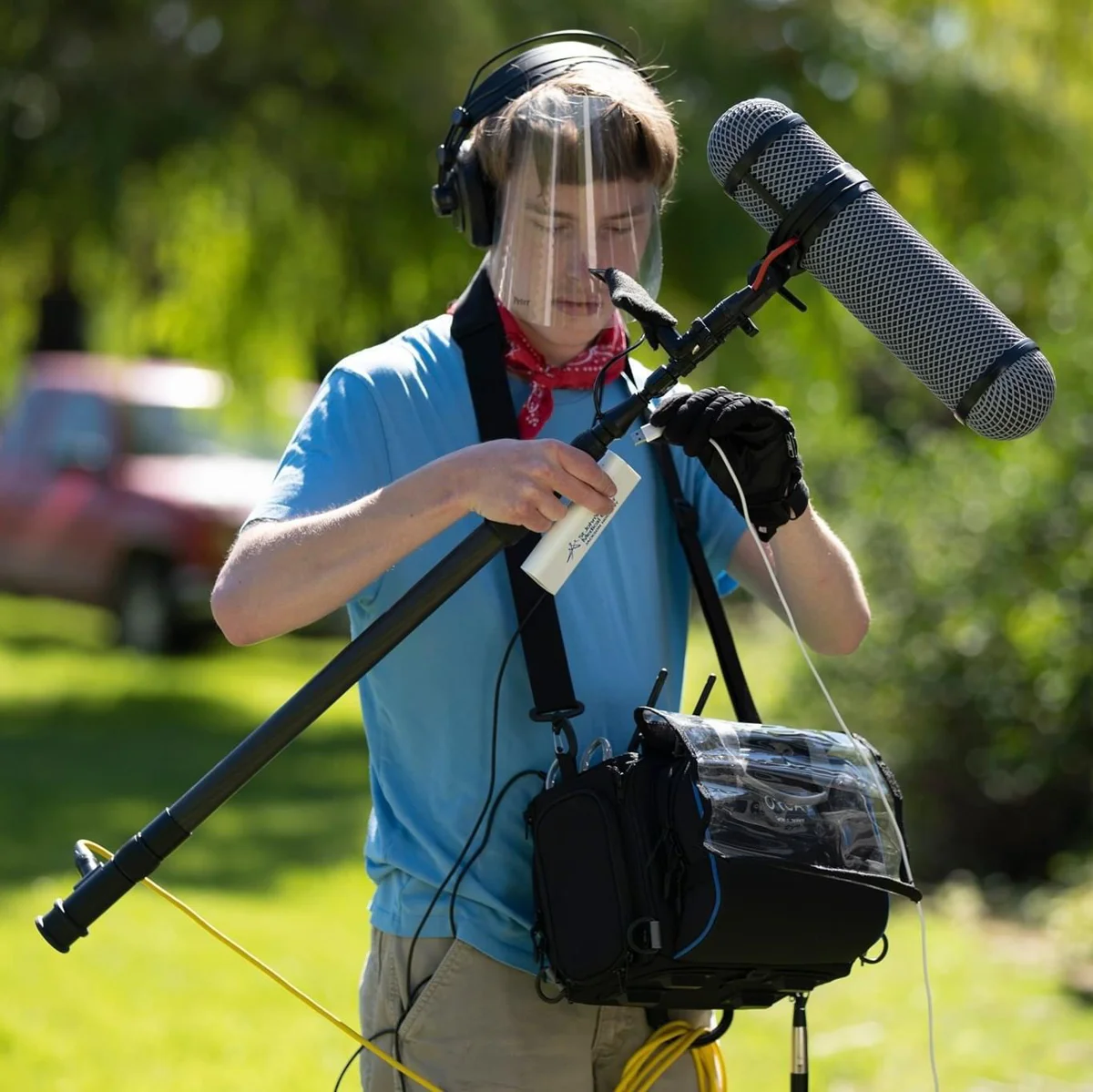
JACKSON, WY, July 15, 2025 — With production credits on projects for NASA, CBS, The National Parks Service, and Budweiser under his belt, Peter Prestrud was already a seasoned industry professional by the time he had graduated from college. Now an in-demand production sound mixer, he has brought his considerable talents to popular documentary and reality-show programs for Netflix, the CW, Discovery, and Fox among others. Prestrud’s rapid career progress can be attributed to his extremely hands-on approach to the filmmaking process, which led him to embrace professional practices and equipment early on in his journey. This focus led to his early adoption of Sound Devices mixer-recorders, specifically the MixPre-6 and 888, as a key part of his professional growth.
On-the-job training Prestrud cut his teeth on filmmaking early on, working on short films and commercial projects in his early teens. While training under Emmy-Award Winning Sound Mixer Jeremiah Slovarp at the film program of Montana State University, he got a taste for location sound and audio post production. “I always knew sound was important and had the opportunity to get my ‘practice’ in early on with the commercial work I’d been doing in High School,” Prestrud explains. “I had an instinct for sound design and capturing the audio environment on set, so I decided to make it my professional focus.”
“One of my passions is the relationship between on-set recording and audio post production. Capturing that atmosphere and utilizing it for post is so important to establishing the right feel for the film in the sound design, so that was something I really wanted to understand and gain skill in.”
Part of Prestrud’s training at MSU was utilizing Sound Devices’ original MixPre-6 and older model 722 recorders on his student film productions. Realizing that having his own professional-grade equipment would give him the ability to take advantage of the industry opportunities he was already being offered, he decided to purchase a MixPre-10 II. “In the short term, I knew that purchasing this in college would allow me to already be experienced and feel confident for these professional jobs that were coming in,” he states. “Sound Devices has been an industry standard for years, so the jump from the older equipment to MixPre-10 II was seamless and it gave me the ability to say yes to the exciting work that was coming my way.”
“It really helped kick-start my career in that aspect, and soon I was finding myself on bigger jobs and having the ability to upgrade even more!”
On the run Now more than a decade into his career, Prestrud has become the go-to sound mixer in his region for documentary and reality show work – thriving in the ‘run and gun’ atmosphere that favors speedy, on-the-go work with little room for error. His latest – Netflix’s American Murder: Gabby Petito required a versatile approach to suit the myriad of shooting styles required. “On a production like that – where you might be switching between an interview and more cinéma vérité-style shooting – we often had to change the setup quickly,” he explains. “You need to be able to go with the flow of the production and capture the sound exactly as needed with minimal complications.”
“Part of my job is solving the production’s problems, really, so given that I favor workflows that make doing that as seamless as possible.”
Prestrud’s current kit includes the Sound Devices 888 mixer-recorder and the SL-2 Dual SuperSlot Wireless Module. His ability to take advantage of 888’s flexible signal routing has proven to be a major asset to this process. “With the 8-Series, the fact that any channel is routable to any input from the menu allows me to work much more fluidly and efficiently,” he says. “I went from unplugging and re-plugging cables constantly to being able to do it all in a few seconds. The advantage is obvious, and it’s proven to be essential as the jobs keep getting bigger and needing more and more inputs.”
Currently splitting his time between work across the Western United States and jobs in LA, Prestrud has enjoyed watching his career evolve from his early commercial work to the professional documentaries, series, and longer narrative works that have started to come down the pipeline. “I’ve been a filmmaker for more than 15 years and it’s amazing to think of how much of that time has already been spent on professional sets,” he muses. “I’m grateful for all of it, and having each be a fresh new challenge is incredibly rewarding.”
“Ultimately – regardless of what set or production you find yourself on – you want to never be in the position where you have to say ‘No’ to any of these challenges. By basing my workflow around Sound Devices, I rarely have to do that.”
How do you build the audio gear that powers the Super Bowl, blockbuster films, and YouTube studios alike? In this episode, Marc Aflalo sits down with Matt Anderson, CEO and co-founder of Sound Devices, to uncover the origin story, innovations, and engineering principles behind one of the most trusted names in professional audio.
From a basement startup in 1998 to an industry-defining powerhouse, Sound Devices has built a reputation for rock-solid audio gear used on film sets, sports broadcasts, and stages worldwide. CEO Matt Anderson shares the company’s humble beginnings, the development of iconic products like the 442 mixer and USBPre, and the leap into wireless with the powerful Astral ARX32 system.
Marc and Matt dive into the secrets behind Sound Devices’ engineering mindset, their refusal to compromise on audio quality, and how customer feedback has shaped every product. Whether it’s 32-bit float recording, Dante integration, or software-defined audio platforms, Sound Devices continues to innovate without sacrificing reliability.
Plus, learn how the company’s partnership with Digico is changing the live production landscape, and why Matt still sketches schematics by hand.
[Chapters]
0:00 – Introduction & Sound Devices overview
2:00 – Origin story: from a basement to broadcast fame
4:20 – First products: MP-1, analog mixers, USBPre
7:40 – USB audio in the early 2000s
10:00 – 32-bit float recording: why Sound Devices led the way
11:15 – First recorder used in a major film
13:00 – Building the 744T: technical challenges
17:00 – Software vs hardware development realities
18:10 – Entering the wireless market
22:00 – Philosophy of listening to customers
25:30 – Compact, multi-channel wireless for reality TV
28:30 – Rise of independent creators and the MixPre line
31:00 – Astral ARX32 and global frequency tuning
34:00 – Integration with Digico and the Audiotonix ecosystem
37:30 – Real-world use case: from Metallica to live broadcast
39:00 – Product ideation, design, and beta testing
RRF Mirror Mode allows a second Astral ARX16 or Astral ARX32 unit to mirror the RF and NexLink settings of a primary ARX16 or ARX32 such that if the primary unit fails or loses power, the secondary (‘Backup’) unit continues to receive and output audio seamlessly as well as taking over NexLink control of paired Astral transmitters. It is the perfect redundant system for mission critical events where failure is not an option.
The following settings are mirrored: ● TX List ● Antenna Mode ● NexLink menu switch –> “Manually set Frequency, Modulation, and Privacy on Transmitters” ● RX channel settings: Bands 1-3, Frequencies, Modulation, Privacy, Gain, HPF, and Polarity ● Global RX Output Gain ● DiGiCo Console List (when Network > RF Mirror Mode > Mirror DiGiCo Console List is On.
Note that in RF Mirror mode there are two entirely separate audio feeds: one from the primary unit, and one from the secondary unit. There is no automatic switching of the audio feeds – it is incumbent on the user to switch the audio externally.
When using DiGiCo consoles, if the primary fails, the secondary unit can issue an RF Mirror macro command to the console to switch over from its Main to Alt inputs seamlessly. Please refer to our Tech Note on AstralComm or the receiver’s user manual.
The model, firmware version, country, and number of RX channels on the Astral Series receiver (based on installed expansion licenses) must be identical between the primary and secondary receivers before mirroring can be enabled.
Setup Mirror Mode
No action is required for setting up the primary Astral Series receiver for Mirror Mode. From the Main Menu of the primary receiver, navigate to the Network Menu. Document the Control IP address for the primary receiver.
Connect both primary and secondary Astral Series receivers to the same control network.
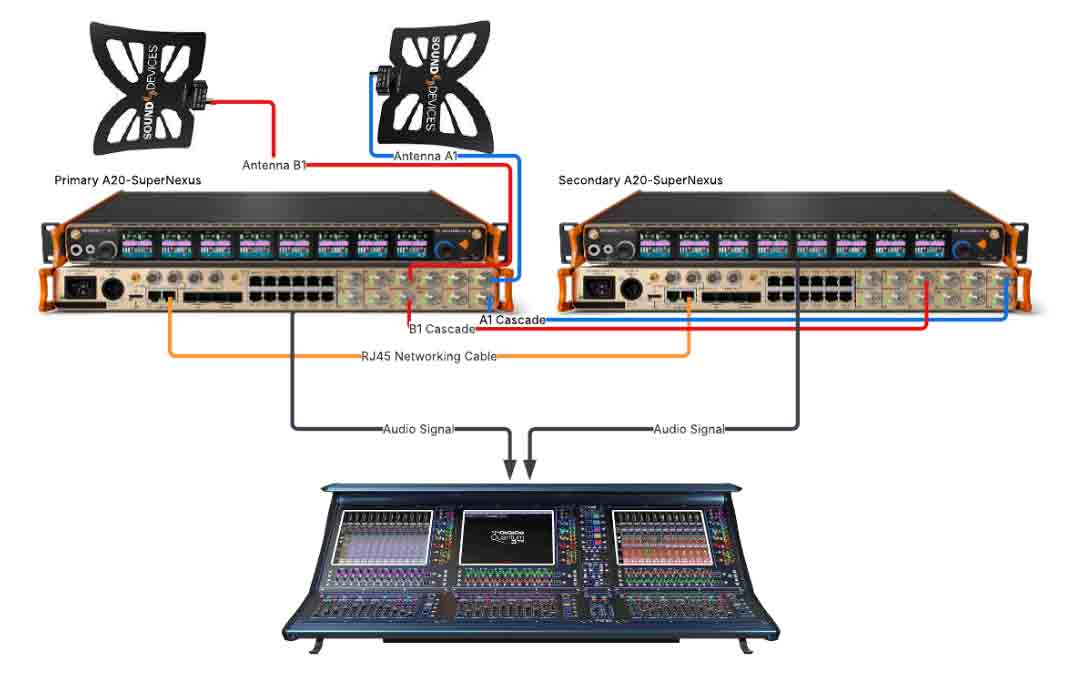
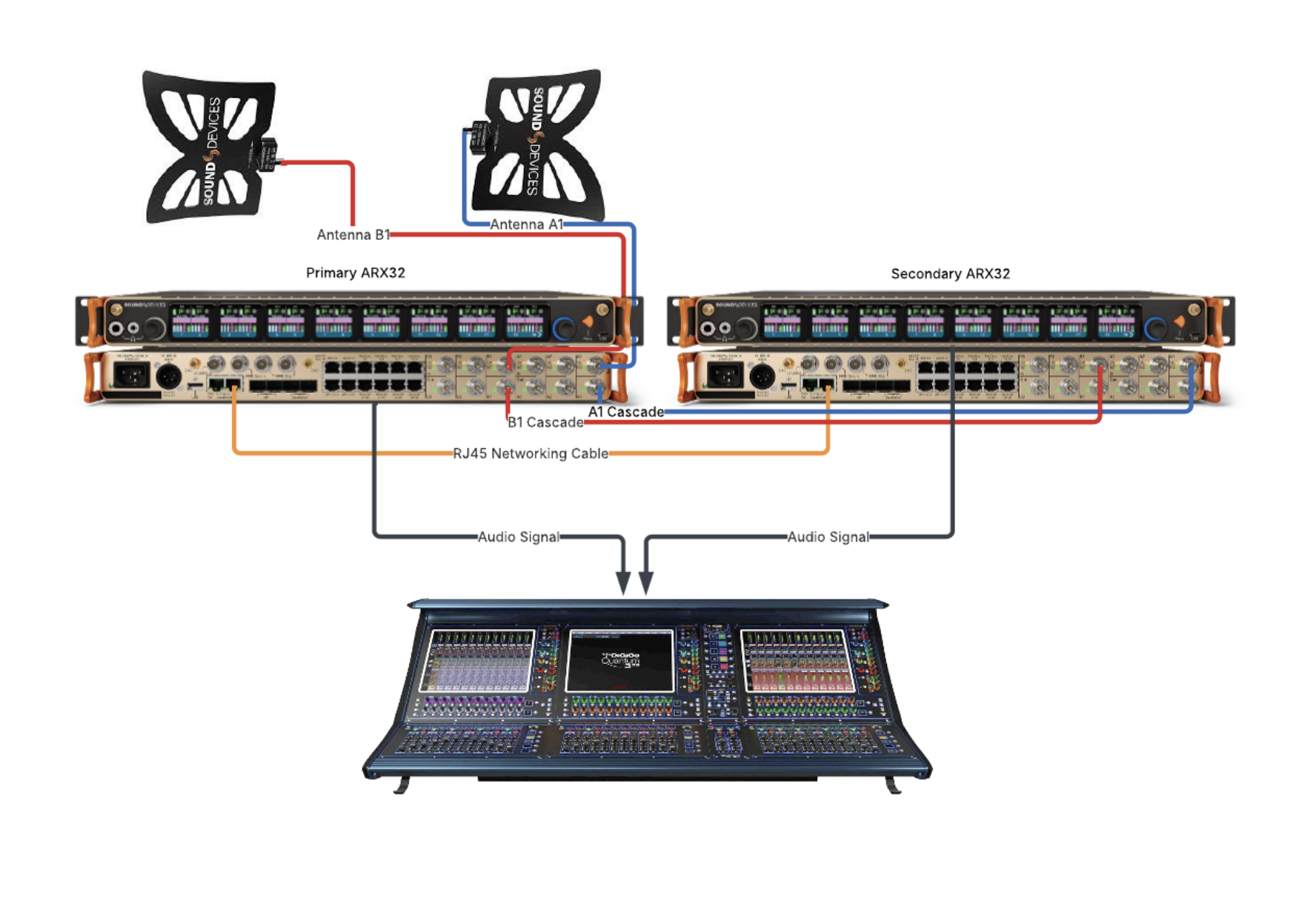
Connect RF antennas to the primary receiver.
Connect the RF Cascade Outputs from the primary receiver to the RF Inputs of the secondary receiver. If the primary receiver loses power, the secondary receiver will take over, providing bias power to active antennas and data to smart antennas.
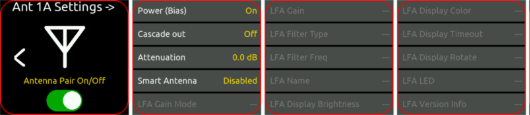
Note: In Mirror Mode, the secondary receiver will mirror the primary receiver’s Antenna Mode, however Bias Power, Cascade Out, Attenuation, and Smart Antenna settings do not transfer from the primary unit to the secondary unit. These options will need to be configured manually on both the primary and secondary receiver.
Connect the audio outputs from the primary receiver to the audio mixing console.
Connect the audio outputs from the secondary receiver to the audio mixing console.
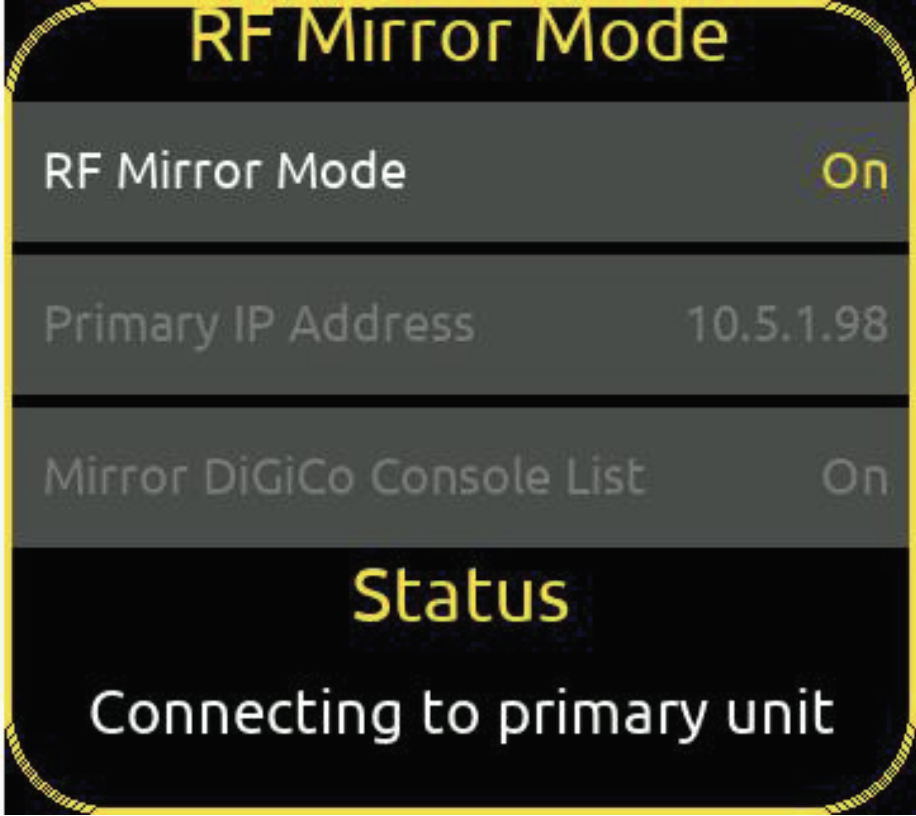
On secondary receiver, navigate through Main Menu > Network Menu > RF Mirror Mode, and enter the Control IP address from the primary receiver into the section labeled “Primary IP Address” and select Save.
Select RF Mirror Mode in the Networking Menu and Select On.
When the secondary receiver has established connection to the primary receiver and is ready to activate Mirror Mode, the following message is displayed:
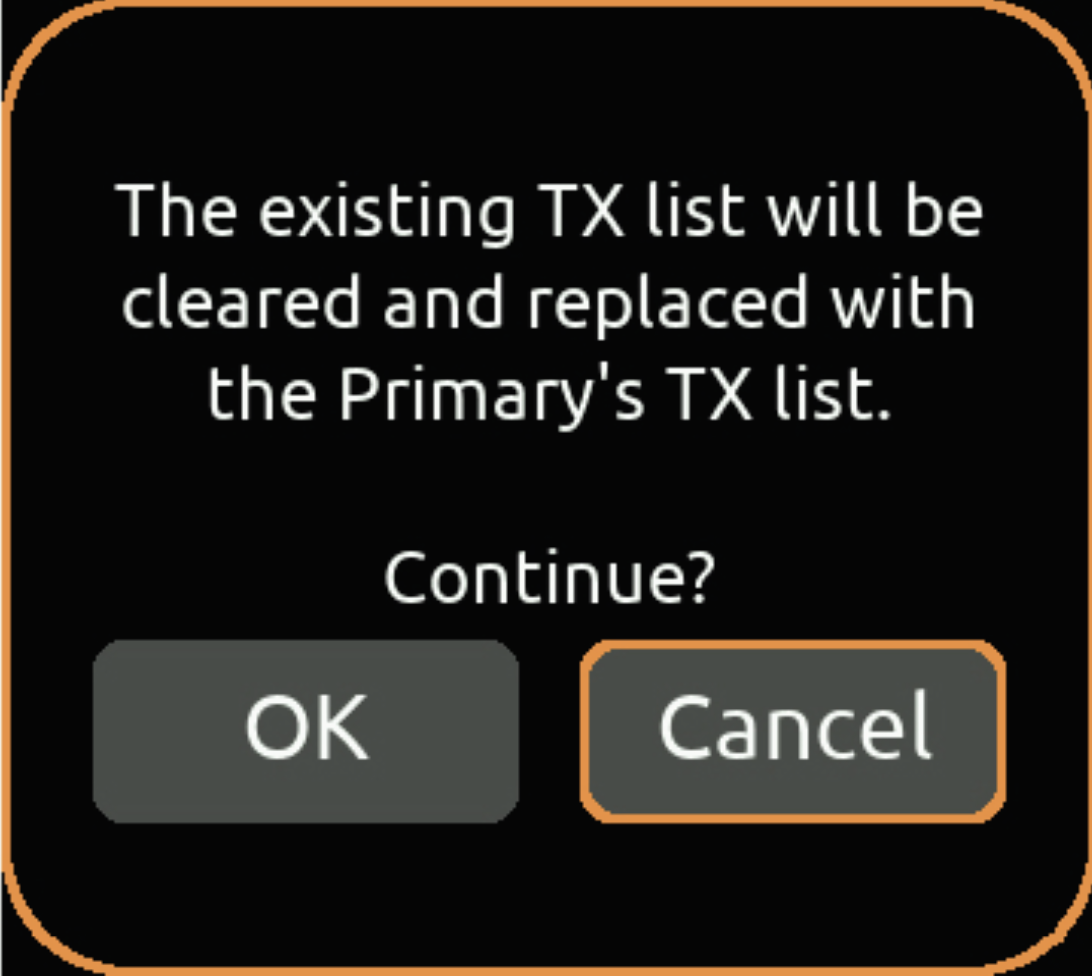
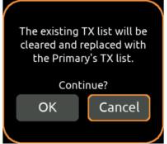
“The existing TX List will be cleared and replaced with the Primary’s TX List. Continue? OK, Cancel”.
Select Cancel to disable Mirror Mode.
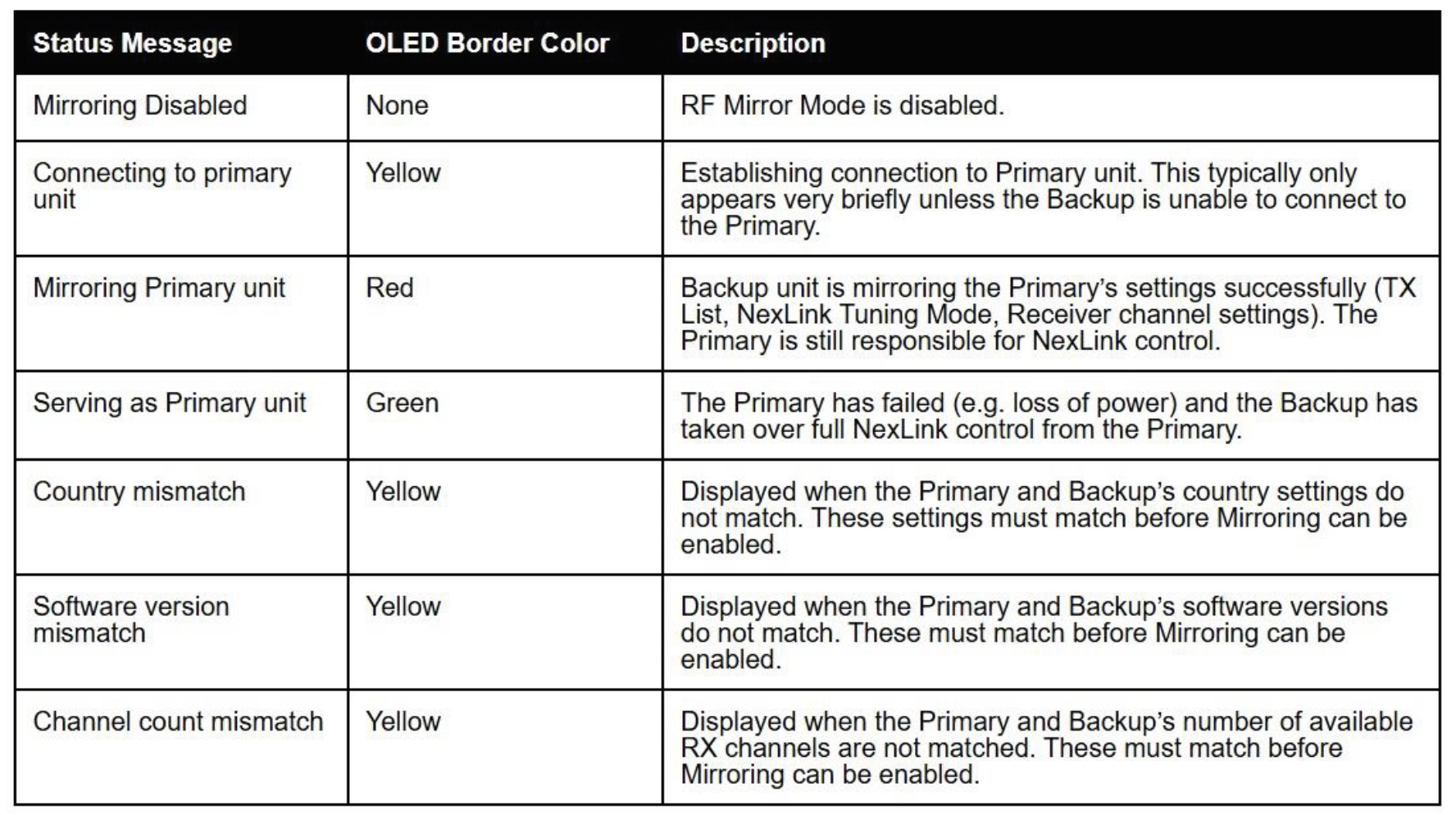
Select OK to continue activating Mirror Mode. Once Mirror Mode has been successfully activated, the OLED borders illuminate red and the Status field displays “Mirroring Primary unit”.
Secondary receiver displays red border around OLEDs to indicate that Mirror Mode is activated and mirroring the primary receiver.
NexLink commands and settings are grayed out on the secondary receiver. These only become active if the primary receiver fails. The following popup is displayed if any RF-related control on the OLEDs is touched: “That setting cannot be modified while mirroring another unit”
Should the primary receiver fail, lose network connectivity, or power down, the secondary receiver seamlessly takes over NexLink control and receiver duty, the Status field displays “Serving as Primary unit”, and the red border surrounding all OLEDs changes to green. When the primary receiver comes back online, it resumes control and the secondary switches back to ‘Mirroring Primary unit’.
Secondary receiver displays green boarder around OLEDs to indicate Mirror Mode is active & that it has become primary receiver.
Disabling Mirror Mode
Tap the Mirror Mode selection and select Off to disable Mirror Mode.
If the secondary receiver is serving as primary receiver (i.e. displaying green borders), the following popup appears: “Permanently take over NexLink control? Yes, No”
When Yes is selected, the secondary receiver exits Mirror Mode and retains all settings, TX List and full NexLink control.
When No is selected, the secondary receiver exits Mirror Mode, clears its TX List and disables NexLink control.
Mirror status
The Status field and OLED border color indicate the state of the secondary receiver when Mirror Mode is active as follows:
Example: Status field showing ‘Channel count mismatch’ and yellow border
Using Astral Commands in RF Mirror Mode
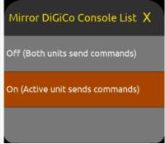
Macro commands created on a Primary Astral ARX16 or Astral ARX32 are mirrored to a Secondary Astral ARX16/ARX32 when RF Mirror Mode is activated. Based on whether the DiGiCo Console List is set to be mirrored or not, the system can be configured so that both units send macro commands or only the active unit sends macro commands. Select Network > RF Mirror Mode, then turn on or off the ‘Mirror DiGiCo Console List’ setting as follows:
On = Only the active unit (Primary or Secondary) sends the macro commands. This is typically used in single console applications.
Off = Both Primary AND Secondary units send the macro commands. This is typically used in scenarios where Primary and Secondary Astral ARX16 are each feeding their own consoles.
AstralComm’ is a proprietary protocol specifically designed to trigger DiGiCo console macros from Sound Devices Astral series devices. Astral transmitters, Astral HH, Astral TX paired with the Astral ARX16 or Astral ARX32 receivers can send macro commands over a network to one or more registered DiGiCo consoles to trigger their local macros.
Equipment Requirements
DiGiCo SD or Quantum series consoles running firmware v20 or later
Astral ARX16 or Astral ARX32 running firmware V8.1 or later
Astral Series Transmitter to trigger the command
Astral TX with the optional Astral TX Switch
Astral HH with the optional Control1 (single button), Control3 (3 button), or Switch Ring (slider switch) control rings.
Setup
1. The first step to establish network communication between the Astral ARX16/ARX32 and a Quantum or SD DiGiCo console is to connect a network cable between the Astral Series receiver’s network control port and the DiGiCo’s network port. Network switches can be used when connecting multiple devices in the network control network.
2. Next, identify both the Astral Series receiver and the console’s control IP address.
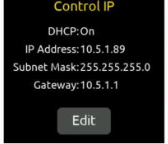
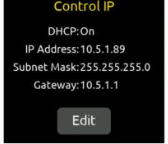
From the Main Menu of the Astral Series receiver, enter the Network Menu and document the IP address of the Control IP. In this example, the Control IP address is 10.5.1.89 .
From the Main Menu of the Astral Series receiver, enter the Network Menu and document the IP address of the Control IP. In this example, the Control IP address is 10.5.1.89
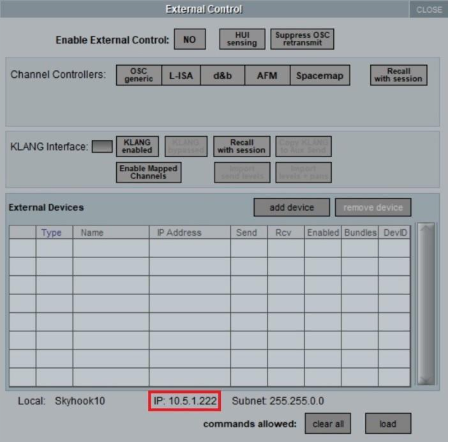
From the Master Screen of the DiGiCo console, navigate to Setup > External Control. Note the Console IP address, which is located at the bottom of the External Control window. In this example, we will use a console IP address of 10.5.1.222.
Note: If the IP Address displays 0.0.0.0, navigate to Options > Console, to confirm Enable Console Network is set to YES and the correct network adapter is selected.
3. Establish the network link between the Astral ARX32/ARX16 and a Quantum or SD DiGiCo console.
From the Main Menu of the Astral Series receiver, navigate to System > Macros > DiGiCo Console List.
Select the Add button to enter the DiGiCo console’s IP address and select Save. In this example, it is 10.5.1.222.
Notes
An AstralComm network can consist of up to ten Astral ARX16 and or Astral ARX32receivers (standalone or in RF Mirror Mode) and ten DiGiCo SD or Quantum consoles.
When working with DiGiCo consoles with dual engines, add the IP address for each engine to the console list. Only the “active” engine will listen to the received AstralComm commands.
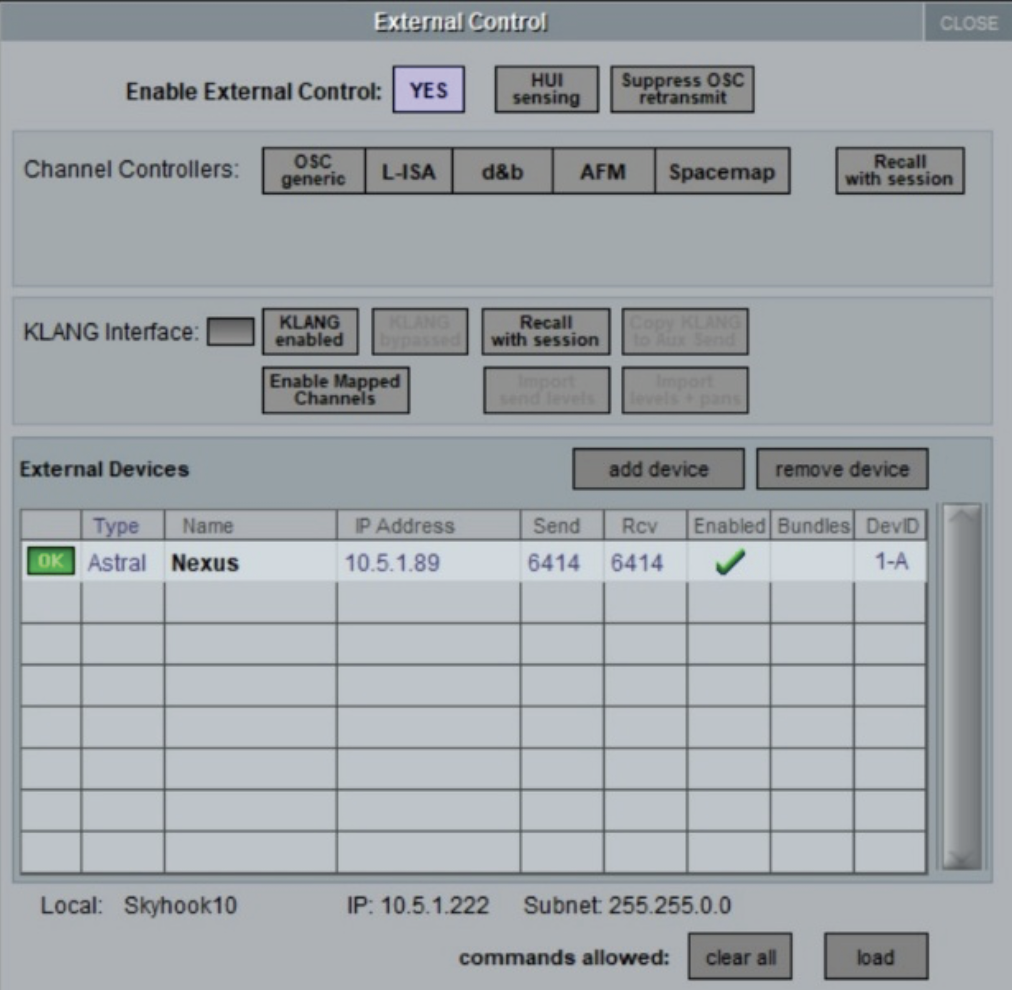
In the External Control window of the DiGiCo console, click the Enable External Control button so it turns to YES.
Select the button add device under External Devices and choose Astral from the drop-down menu.
Once added to the External Devices list, enter the Astral Series receiver’s control IP address. In this example, the Control IP address is 10.5.1.89
Confirm the DevID if using multiple external devices. ]
Select Enabled on the Astral Series receiver in the External Devices list.
If the link is successful, the device will display OK in green on the list.
4. From the Astral Series receiver 1RX view of the channel to trigger the command, select the gear icon.
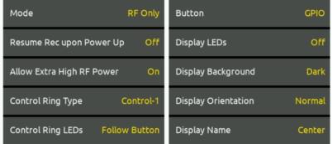
From this menu, confirm the Control Ring Type for the transmitter triggering the commands matches the installed option on the transmitter.
Assign the transmitter Button to Mute, Rec, Aux Hold, Aux Latch, Power, GPIO, RF, or PTT to activate the button.
Notes:
If the Button is assigned to None, the button is disabled and will not trigger Astral commands.
If the Astral Series Transmitter is in the off state or if RF is muted, Astral commands will not be triggered.
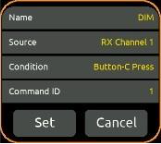
5. From the Main Menu of the Astral Series receiver, navigate to System > Macros and select Add New Macros. Create new Macros by defining the following parameters.
Name: Macro Name
Source: Selects which receiver channel or TX Group is the source for the macro command.
Options include:
RX Channel Number (1-n, where ‘n’ is the number of available RX channels installed).\
TX Group Number (1-8)
All TX Group
RF Mirror
Condition: To send a command from the selected source, choose the paired transmitter button action, transmitter control switch position, transmitter state, or Astral ARX16/ ARX32 action that should trigger it.
a. Transmitter Button Actions (Applies to the Astral HH Control Ring buttons)
[Button-L, Button-C, or Button-R] Release
[Button-L, Button-C, or Button-R] Press/Release
b. Transmitter Control Switch Position (Applies to Astral HH Control Ring Switch & Astral TX Switch)
[Control Switch] On/Off
[Control Switch] On
[Control Switch] Off
c. Transmitter State (Sends the command when the ARX16/ Astral ARX32 receives confirmation that the transmitter state is true)
TX Power, TX Mute, TX Record, or TX RF] is On
[TX Power, TX Mute, TX Record, or TX RF] is Off
d. Astral ARX16/ Astral ARX32 Action (Sends the command immediately when the Astral ARX16/ ARX32 initiates the action from its interface or the web app. It does not wait to receive confirmation from the transmitter)
Initiate [TX Power, TX Mute, TX Record, or TX RF] On
Initiate [TX Power, TX Mute, TX Record, or TX RF] Off
[TX Group 1-8 Power, TX Group 1-8 Mute, TX Group 1-8 Record, or TX Group 1-8 RF] On
[TX Group 1-8 Power, TX Group 1-8 Mute, TX Group 1-8 Record, or TX Group 1-8 RF] Off
[All TX Group Power, All TX Group Mute, All TX Group Record, or All TX Group RF] On
[All TX Group Power, All TX Group Mute, All TX Group Record, or All TX Group RF] Off
Command ID: Range: None, 1 to 256. The Command ID must correspond with the DiGiCo console Macro’s Command ID otherwise the console macro will not be activated
6. From the DiGiCo Master Screen, navigate to Setup > Macros.
Select new to add a new macro.
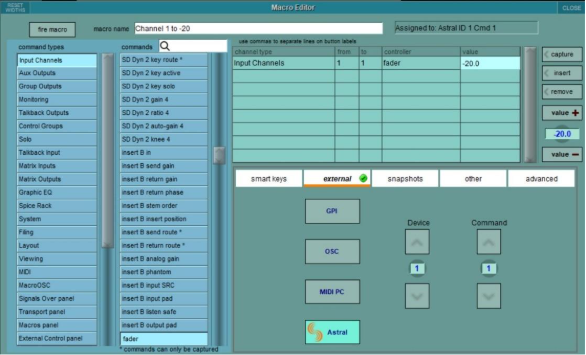
Define the parameters of the Macro in the Macro Editor. Refer to the consoles user’s manual for more information on Macros.
To trigger the Macro from an AstralComm command, in the Macro Editor, select external.
Confirm Astral is selected and Define the Device and Command ID to match the Astral Series receiver.
Macros and RF Mirror Mode
Macro commands created on a Primary Astral ARX16/ ARX32 are mirrored to a Secondary unit when RF Mirror Mode is activated. Based on whether the DiGiCo Console List is set to be mirrored or not, the system can be configured so that both units send macro commands, or only the active unit sends macro commands.
Select Network > RF Mirror Mode, then turn on or off the ‘Mirror DiGiCo Console List’ setting as follows:
On = Only the active unit (Primary or Secondary) sends the macro commands. This is typically used in single console applications.
Off = Both Primary AND Secondary units send the macro commands. This is typically used in scenarios where Primary and Secondary Astral ARX16/ ARX32 are each feeding their own consoles.
Note:
When entering Mirror mode on the Secondary unit, the following message will appear:
Selecting OK will clear the TX list of the Secondary unit and replace it with the Primary unit’s TX list.
Sound Devices is excited to be back at IBC 2025! Visit us in Hall 8, booth C42 to see the latest innovations in Astral Wireless, 8-Series, and more. Stay tuned for full event details.